A to Z | Directory | Full View | Mobile Site
When you have uploaded a document but need to update its content, you should use this process to upload the new version.
Do NOT delete the link or the old document. A document that you have uploaded may be used by other authors and linked to from other pages (there is a way to check this - see "View Referring Pages"). Deleting your document breaks their link.
Open your text block where the document is linked.

Place your cursor in the middle of the link (don't try to highlight anything - just leave your cursor somewhere in the text).

Then click the tag <Anchor> in the properties area under the text block.

This will highlight the link for you without the possibility of highlighting a character such as a period or space that you might accidentally include if you try highlighting manually.

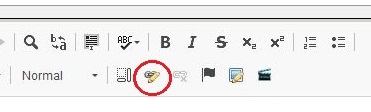
Once the text is highlighted, click the Link icon.

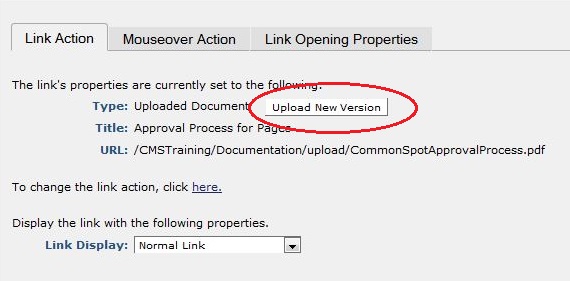
The list of link types will now include one more type that only appears when you have highlighted the link to an existing document. Choose "New Document Version" for your Type.

Highlight "New Document Version," click "Save," and Browse for your updated file where you have saved it on your computer.

Select and open the file.

When you see the local filename, click "Save."

Your new version has now replaced the old version but the document ID, the title, and links to the document are the same as before.