UNIVERSITY OF WISCONSIN River Falls


Documentation
Faculty and Staff Profile Pages
Faculty and Staff Biographical Profile Pages
Attention! Any profile that needs changes that includes information from eSIS, name, office location, and e-mail can only be changed by HR, and phone numbers can be updated by the individual. (Make directory changes.)
Profile pages are viewed by visitors using the Directory and People Search.
A profile page is generated automatically upon completion of the hiring process and entry of information in HRS.
- The original page includes the employee name, department, work location, phone, and e-mail address.
- These items must be updated by the Human Resources office.
- An employee profile page is deleted when their university account is no longer active.
Images can be retrieved by contacting the university communications and marketing office. Employees should schedule an appointment for a profile photo. You may upload your own image, but be sure to follow the size guidelines (200x300).
Biographical information, work history, pastimes, etc., can be authored by any CommonSpot author but must be approved by the campus Web team after the page is submitted. The changes will not be visible until the page has been approved.
How to Edit the Biographical Information on a Profile Page
Important:
The FacultyStaff subsite has a page for each employee but subsite lists will only display 300, so you need to locate the page using one of three ways: Quick Find, Reports, or Tools.
Use "Tools" in the menu bar to find your page in the FacultyStaff subsite.
Once you have found the page you want to edit, click "View" and select "Work on this Page (All Changes)."
Click the gear, then click "Data."
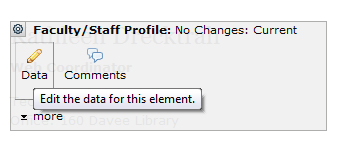
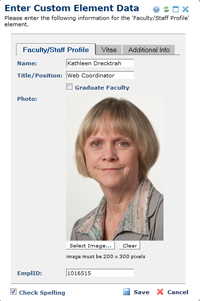 The profile includes information from eSIS or HRS: name, office location, phone, and e-mail (which can only be changed by HR).
You can enter the Title/Position, check the Graduate Faculty box only if it applies.
Click Select Image to upload or change an image. (Get new mug shots from the university communications and marketing office.)
Review Images for instructions. These MUST be 200x300.
Click the Vitae tab to enter Education, Research Interests, Professional Development, and Courses Taught. This information will show up with the headings added automatically.
Click the Additional Info tab to enter other information or use your own formatting. Headings in this section should be Heading 4 style.
Save and Submit. Your changes will not appear until the page has been approved by web administrators.
Create a Link to a Profile Page
- Open the Text Block and Highlight the name
- Click the link icon
- Leave the link type as "Page or bookmark on a page"
- Click the "Quick Find" button
- Put the name in the search field
- Select the FacultyStaff subsite
- Search
- Select the correct page,
- Click "Use highlighted page"
- Choose Window Properties (a Tab)
- Select New Window (checkbox)
- Click the Properties button and enter properties of 900 width and 700 height.
- Save and Submit


