UNIVERSITY OF WISCONSIN River Falls


Documentation
Reports, Tools and Quick Find
Locating pages, documents, and images
Aside from viewing the list of pages by clicking the subsite yellow folder, there are several ways to locate documents and images.
Using Tools
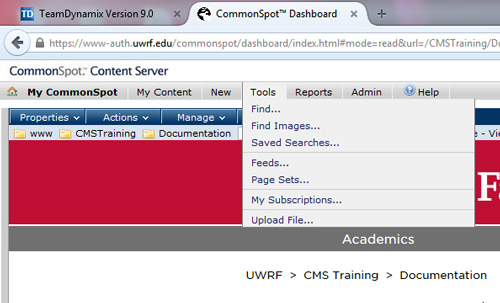
Click "Tools" in the menu bar and use "Find" to search for documents and "Find Images" to search for images.
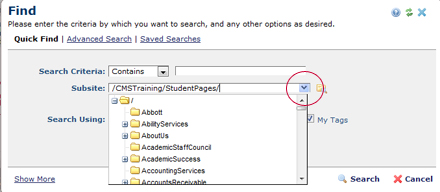
Click the Subsite: blue arrow and choose the subsite to search from the drop-down list.
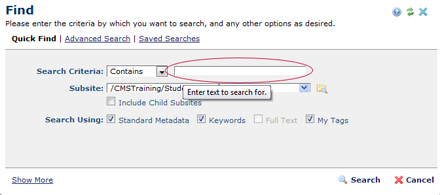
Enter text to search for - a word used in the title of the image or the document (which is why it's important to use a descriptive title when uploading documents or images).
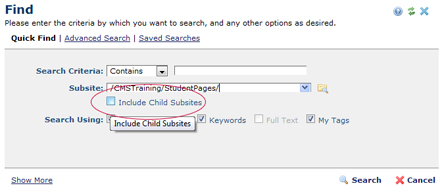
Check the box to include child subsites (the document you search for may be down a level or two).
Click "Search" to view the results.


