UNIVERSITY OF WISCONSIN River Falls


Documentation
Logging In and Retrieving Pages
Attention self-guided training users: Log in from any page in the "Student Training Practice" subsite then follow the next tutorial to create a new page. 
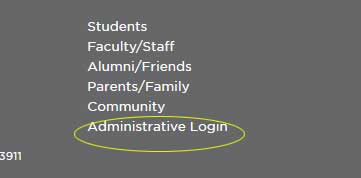
The login link is in the page footer which appears on each page.
Look in the lower right corner for Administrative Login
*Note: This button will only appear when connected to the campus network or VPN.
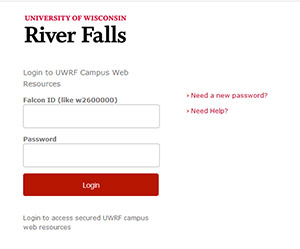
Use your W number and associated password.
You will arrive on the same page you visited but menu options will now be revealed.
My Commonspot Dashboard Option
The "My Commonspot Dashboard" in the upper left corner will reveal pages to which you have access or are in the process of working on.
Retrieving an Existing Page
There are three way to access other pages.
- Click on the yellow subsite folder in the upper left corner to reveal the pages there in.
- Menu>Choose Tools> Find. Select the subsite where the page may be and filter by search terms.
- Menu>Choose Reports and select the subsite. Scroll through the list of pages.
(Pages that have been recently worked on may appear listed in the the MyCommonspot dashboard also.)
Log in on any page but...
You may log in on any UWRF web page but you will only be able to edit pages that you have been granted author rights. While remaining logged in you may navigate to a page to which you have access.
Editing an existing page
To edit a page, go to:
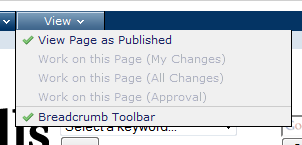
View > Work on this Page (All Changes)
If those options are grayed out, you do not have permissions for the page.